A teleprompter that follows you.
A free, open-source, see-through teleprompter for recording to camera. Speak, and the script keeps up. Say “Prompter, pause” and it waits — on your own computer, with nothing sent anywhere.
Windows · Mac · Linux · MIT licence · No account needed
See it in action
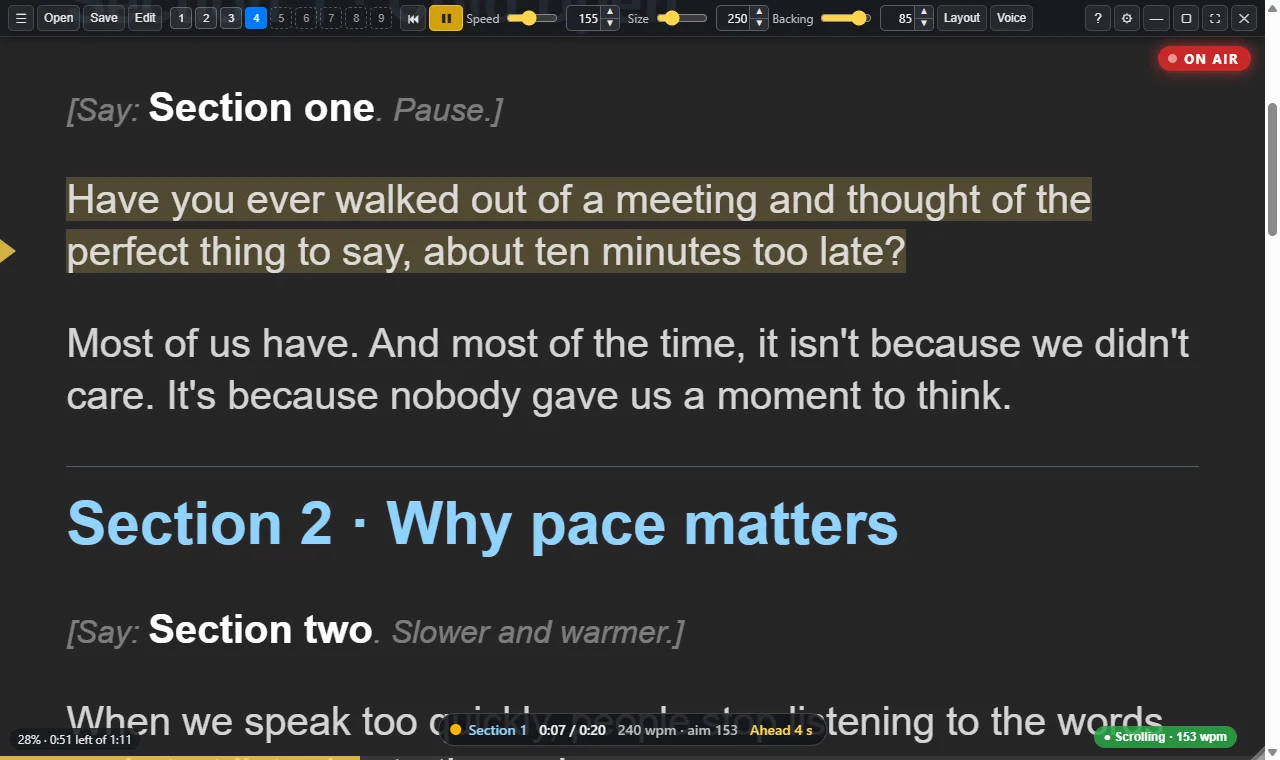
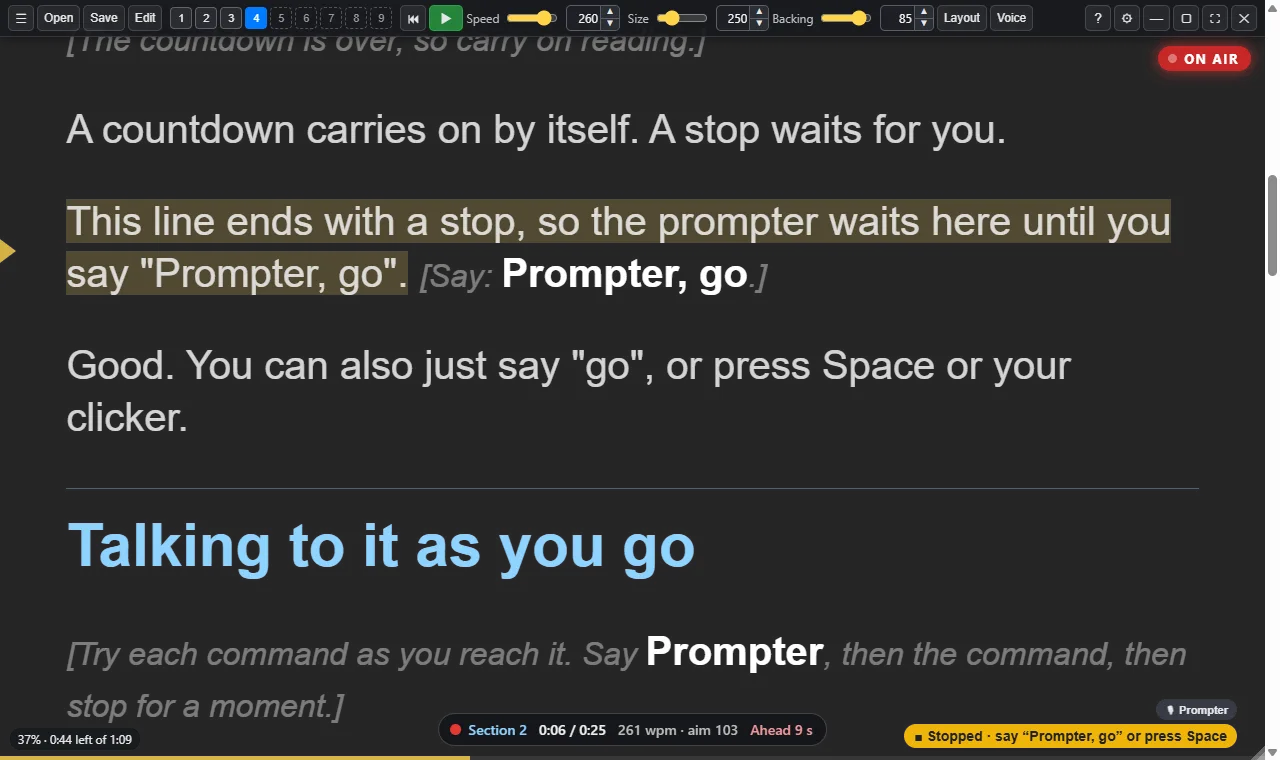
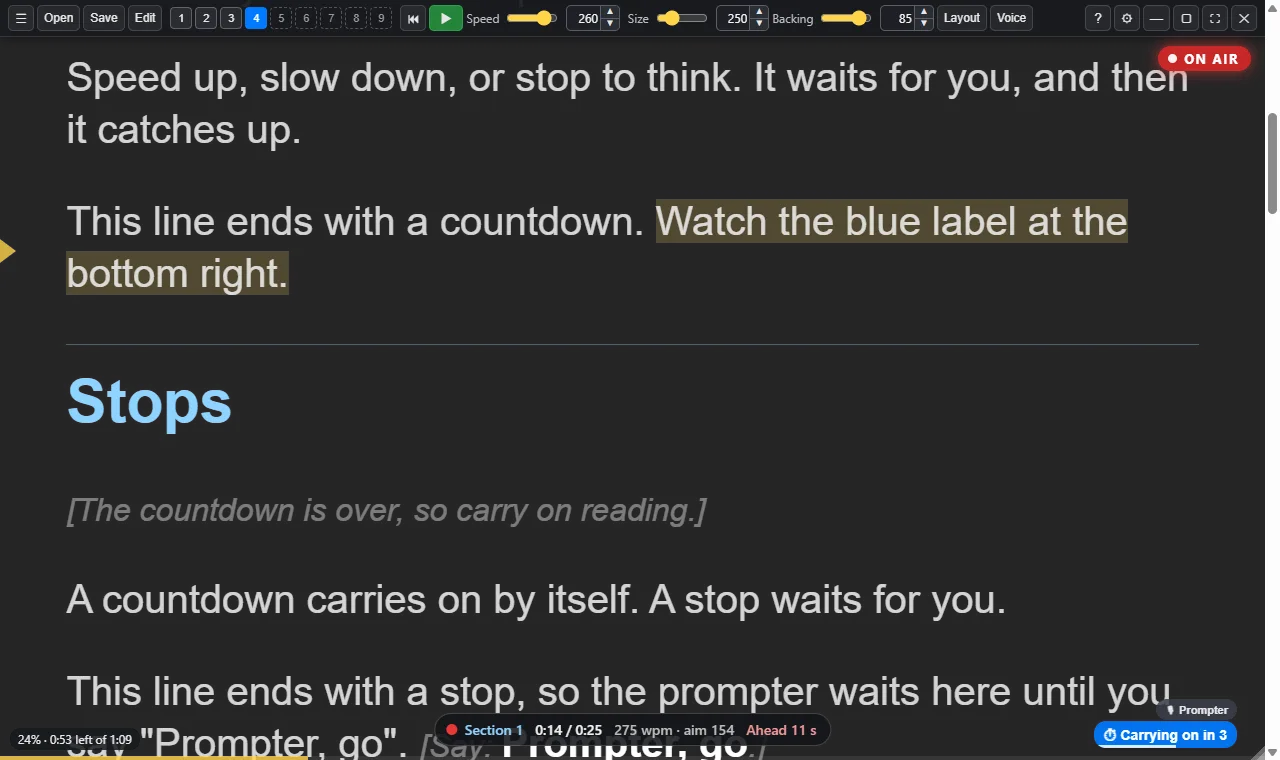
What you see while you record
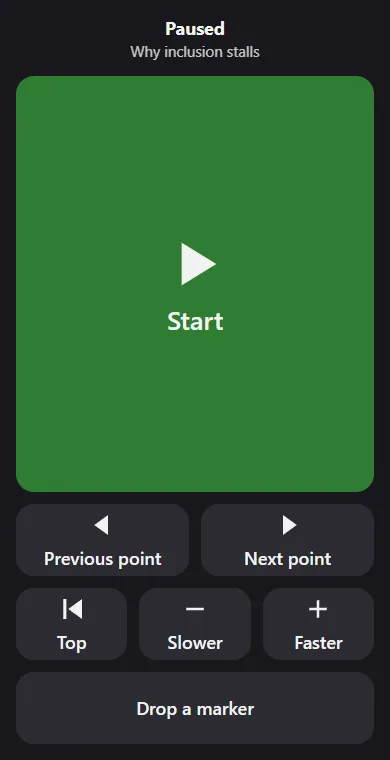
Start here
Everything lives on GitHub
Download
Free installers for Windows, Mac (Apple silicon and Intel) and Linux, on GitHub.
Get the latest release →Source code
The whole app is open source under the MIT licence. Read it, build it, fork it.
View on GitHub →User guide
Every screen explained, with pictures. It’s also built into the app: Help > User Guide.
Read the guide →Write scripts with AI
A ready-made prompt for ChatGPT, Claude or Gemini that writes scripts Sightline can pace, stop and count down.
See the AI prompt →Everything it adds
Side by side with the original Electron Teleprompter: every feature Sightline adds, area by area, with the change log.
See the full list →Ideas and bugs
Found something odd, or have an idea? Open an issue on GitHub.
Open an issue →Why I made it
Eyes on the lens. Words where you need them.
I record a lot to camera, and I wanted a prompter that worked the way I do: one that sits over whatever else is on my screen, keeps pace with me rather than making me chase it, and stays out of the recording. So I took David Neal's excellent open-source Electron Teleprompter and built on it — voice scrolling that runs on your own computer, spoken commands, stops and countdowns, pacing, talking points, prompter-monitor support and more.
It's free, it's open source, and it's for anyone who speaks to a camera: presenters, trainers, coaches, podcasters, video creators — and anyone who'd simply rather not learn a script by heart.
What it does
Everything a recording day needs
Follows your voice
Speak and the script keeps pace with you — ad-libs, pauses and re-reads included. The sentence you’re about to say is lit up as you go. Speech recognition runs on your own computer: no account, no key, and it works offline.
Talk to it
Say “Prompter, pause”, “Prompter, go”, “slower”, “again” for a retake, or “resync” if it loses you. Commands only count at the end of what you say, so a script line about the prompter never sets one off.
Stops and countdowns
Write a stop into your script and the prompter waits until you say “Prompter, go”. Write a timed pause and a countdown shows, then it carries on by itself. Both work whether it’s following your voice or scrolling at a steady pace.
Or a steady pace
Set a words-per-minute speed, or give each section a target time. A pacing light shows green, amber or red as you go, and a take summary afterwards tells you which sections ran long or short.
Opens what you already have
Word documents, PDFs, Google Docs links, rich text, plain text, Markdown and HTML. A Google Doc is fetched afresh each time you open it, so you can keep editing it there.
AI-ready scripts
Help > Copy the AI Script Prompt puts instructions on your clipboard. Paste them into your AI assistant, describe your video, and get back a script with sections, target times, stops and countdowns in place.
Talking points
Speaking off script? Show one section at a time as large bullet points, with a talk timer instead of scrolling.
Built for real rigs
Mirrored text for beam-splitter glass, full screen on a prompter monitor such as the Elgato Prompter, and an eye-line mode that keeps a small window right by the camera.
Control it your way
A menu that groups everything, six tabs of settings, nine script slots, a floating button pad, a phone remote over your Wi-Fi, a control window, pedals, game controllers and keyboard shortcuts. More below.
Stays out of the recording
Hide the prompter from screen sharing and recordings, and turn on click-through so clicks reach the app behind it while the controls still work.
Easy on the eyes
A focus band that dims the lines away from the reading line, colour themes including yellow on dark and high contrast, and fonts including Atkinson Hyperlegible and OpenDyslexic.
Free, and yours
No account, no subscription, no tracking. Your scripts stay on your computer, and the code is open for anyone to check or build on.
The controls
Every control within reach
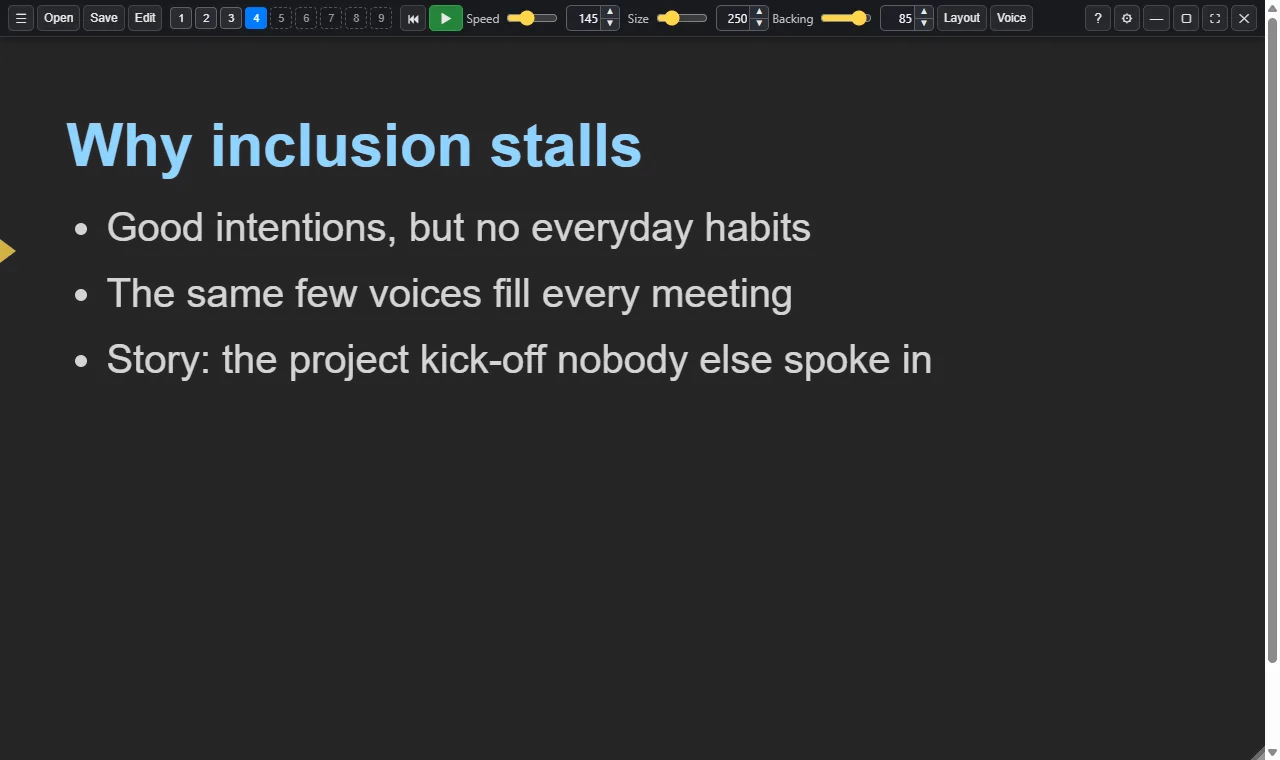
The control bar sits at the top of the prompter and tucks away while you read: open, save and edit; the nine numbered script slots; start, speed, text size and background; and the Layout and Voice panels. Move the mouse and it comes back.

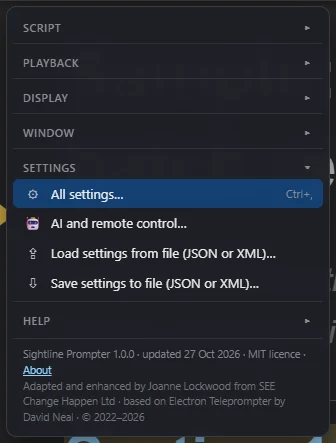
The ☰ menu
Everything in one place, grouped into Script, Playback, Display, Window, Settings and Help, with the keyboard shortcut beside each item.
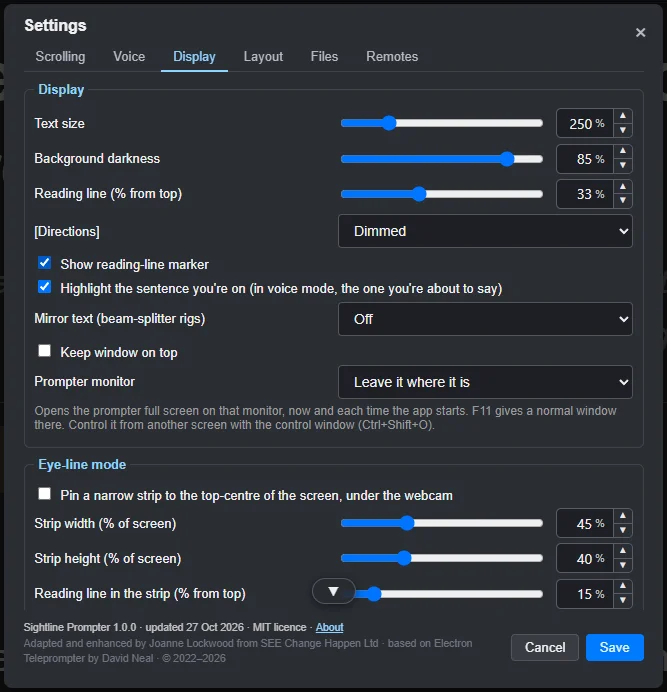
Settings, in six tabs
Scrolling, Voice, Display, Layout, Files and Remotes. Every slider has a number box you can type into, and you can save your settings to a file and load them on another computer.
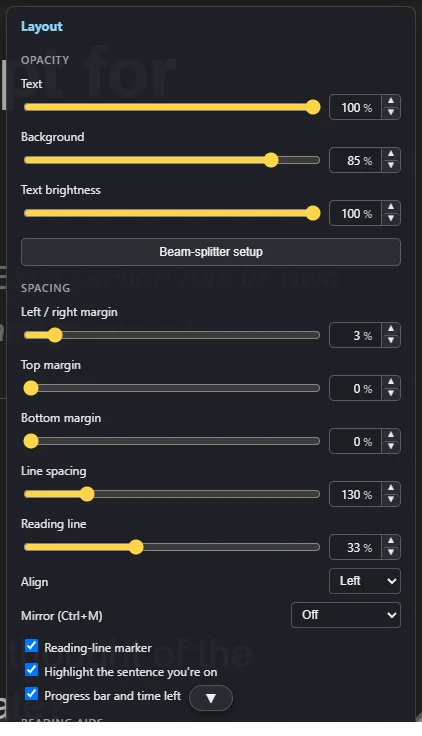
The Layout panel
Adjust the look while the script runs: text size, opacity and background, margins, the reading line, the focus band, colours, fonts, mirroring and a one-click beam-splitter setup.
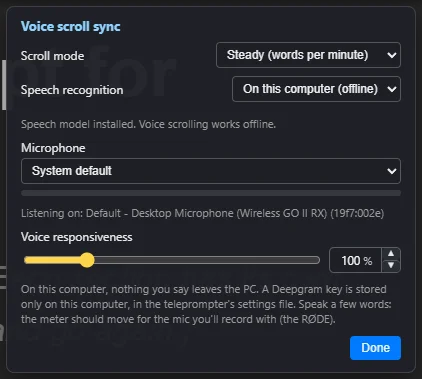
The Voice panel
Choose steady or voice scrolling, the speech recognition and your microphone, with a level meter to check it hears you.
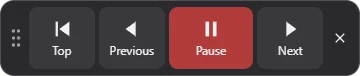
The floating pad
Top, Previous, Start or Pause, and Next in a small pad that stays on top of everything. Drag it anywhere: beside your camera, onto another monitor, over Riverside or Zoom, or over the prompter itself, where it flips with the mirror setting so it reads correctly in beam-splitter glass. It reopens where you left it (Ctrl+Shift+P).
Nine script slots
The numbered buttons 1 to 9 hold nine scripts at once. Ctrl and a number swaps between them, and each slot remembers where you were.
Your phone as a remote
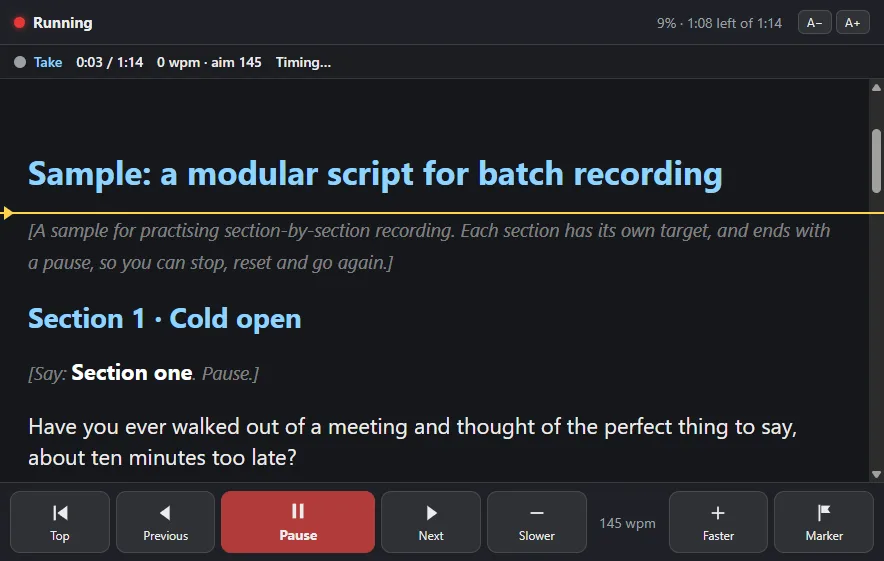
Tick Phone remote in Settings, scan the QR code, and your phone gets big Start, Previous, Next, Slower, Faster and Marker buttons, over your own Wi-Fi.
A control window
An upright copy of the script for a second screen, following the prompter, with big buttons. Click any line to move the prompter there (Ctrl+Shift+O).
Keys, clickers and pedals
Space to start and pause, arrows for speed and sections, a presenter clicker, foot pedals or a game controller. Press F1 for every shortcut.
AI and remote control
Let an AI assistant or a script on your own computer load scripts and run the prompter, protected by a token you control. Off unless you turn it on.
Write it with AI, read it with Sightline
Scripts that know where to stop
- In Sightline, choose Help > Copy the AI Script Prompt.
- Paste it into ChatGPT, Claude or Gemini, and describe the video you want.
- Open the script it writes. Sections, target times, stops and countdowns are already in place.
{pacing: section, wpm: 145}

## Cold open {target: 0:45}

[Look straight at the camera.]

There's one worry I hear from managers more than any other.
{pause: 2s} It's "what if I say the wrong thing?" {stop}
Words in [square brackets] are notes to you, dimmed on screen.
Instructions in {curly braces} are for the prompter and hidden while you read:
{stop} waits for “Prompter, go”, and {pause: 2s} counts down and carries on.
Read the full AI prompt or
every script instruction.
Get Sightline
Free for Windows, Mac and Linux
Download the installer for your computer from the latest release on GitHub. The installers aren't code-signed yet, so the first time you open it Windows may say it's from an unknown publisher (choose More info, then Run anyway), and a Mac may ask you to confirm (right-click the app and choose Open).
Adapted and enhanced by Joanne Lockwood from SEE Change Happen Ltd, based on Electron Teleprompter by David Neal. MIT licence.
Frequently asked questions
What is Sightline Prompter?
A free, open-source, see-through desktop teleprompter for recording to camera. Your script sits over everything else on your screen, so you can read it while looking at the lens — it scrolls at a steady pace or follows your voice as you speak. It was adapted and enhanced by Joanne Lockwood from SEE Change Happen Ltd, based on Electron Teleprompter by David Neal.
Where can I download it?
From GitHub: https://github.com/JoJo-1965/sightline-prompter/releases/latest has installers for Windows, Mac (Apple silicon and Intel) and Linux (AppImage and .deb). The source code is at https://github.com/JoJo-1965/sightline-prompter.
Is it free?
Yes. Sightline Prompter is free and open source under the MIT licence. There is no account to create and nothing to subscribe to.
Which computers does it run on?
Windows, macOS (Apple silicon and Intel) and Linux. The installers aren't code-signed yet, so the first time you run it Windows may say it's from an unknown publisher (choose More info, then Run anyway) and a Mac may ask you to confirm (right-click the app and choose Open).
Does voice scrolling need the internet?
Only once, to download the speech model (about 73 MB). After that, voice scrolling works entirely offline on your own computer. If you prefer an online service, you can choose Deepgram instead and use your own key.
Does my audio leave my computer?
Not with the default setting. Speech recognition runs on your own computer, so nothing you say is sent anywhere. Your audio only goes online if you choose to switch to Deepgram.
Can I control it by voice?
Yes. Say "Prompter" and then a command — pause, go, slower, faster, back, next section, from the top, again (for a retake), marker, resync, bigger or smaller — then stop for a moment. It works while the prompter follows your voice, and optionally while it scrolls at a steady pace.
Can my script tell the prompter where to stop?
Yes. Put {stop} in the script and the prompter waits there until you say "Prompter, go" or press Space or your clicker. Put {pause: 5s} for a five-second countdown, after which it carries on by itself. The full list of script instructions is at https://github.com/JoJo-1965/sightline-prompter/blob/main/docs/SCRIPT-DIRECTIVES.md.
Can I write my scripts with ChatGPT, Claude or Gemini?
Yes. In the app, choose Help > Copy the AI Script Prompt, paste it into your AI assistant and describe the video you want. The script that comes back has sections, target times, stops and countdowns ready for Sightline. The prompt is also published at https://github.com/JoJo-1965/sightline-prompter/blob/main/docs/AI-SCRIPT-BRIEF.md.
Can it open PDFs and Google Docs?
Yes. PDFs open like any other script, with paragraphs and headings rebuilt. For a Google Doc, choose File > Open a Google Doc and paste its link; the doc needs to be shared as "Anyone with the link", and the latest version is fetched each time you open it.
Can I control it from my phone?
Yes. Tick Phone remote in Settings > Remotes and scan the QR code with a phone on the same Wi-Fi. The phone gets big Start, Previous, Next, Top, Slower, Faster and Marker buttons. There's also a floating button pad you can drag anywhere, a control window for a second screen, presenter clickers, foot pedals, game controllers and keyboard shortcuts.
Can I keep several scripts open?
Yes. The numbered buttons 1 to 9 in the control bar are nine script slots. Ctrl and a number swaps between them, and each slot remembers where you were in that script.
Will it show up when I share my screen or record?
Not if you don't want it to. Turn on "hide from screen sharing and recordings" and the prompter stays visible to you but is left out of screen shares and screen recordings — useful in tools such as Zoom, Teams, Riverside or OBS.
Does it work with a beam-splitter teleprompter or the Elgato Prompter?
Yes. The text can be mirrored for beam-splitter glass, and you can choose which monitor the prompter uses — the Elgato Prompter shows up by name and the prompter opens full screen there each time. A separate control window keeps an upright copy of the script on your main screen.
How do I report a bug or suggest a feature?
Open an issue on GitHub at https://github.com/JoJo-1965/sightline-prompter/issues. The roadmap and change log are in the repository too.