Download and install Sightline
Sightline 1.2.0 — Windows installers are unsigned. Mac apps are ad-hoc signed and are not Apple-notarised. Your browser or operating system may ask for an extra confirmation. The steps below apply to a download you have chosen from the official Sightline release.
The pictures are illustrations, not screenshots from your computer. Wording and available actions can vary with browser/OS version and device policy.
Choose the right file
| Computer | Release asset |
|---|---|
| Windows 10/11, x64 | Sightline-Prompter-Setup-1.2.0.exe |
| Mac with Apple silicon | Sightline-Prompter-1.2.0-arm64.dmg |
| Mac with Intel processor | Sightline-Prompter-1.2.0-x64.dmg |
| Linux | The .AppImage or .deb for your system |
On a Mac, Apple menu > About This Mac shows Chip for Apple silicon or Processor for Intel. For an update, save any draft and close the older app first. Personal scripts and recordings are retained.
Microsoft Edge: keep the download
If Edge reports that the installer is not commonly downloaded:
- Open Edge’s Downloads list (the download icon or Ctrl+J).
- Find the Sightline installer, open its … menu and select Keep.
- If another confirmation appears, choose Show more, then Keep anyway.
- Open the saved installer. Windows may then show its separate confirmation.
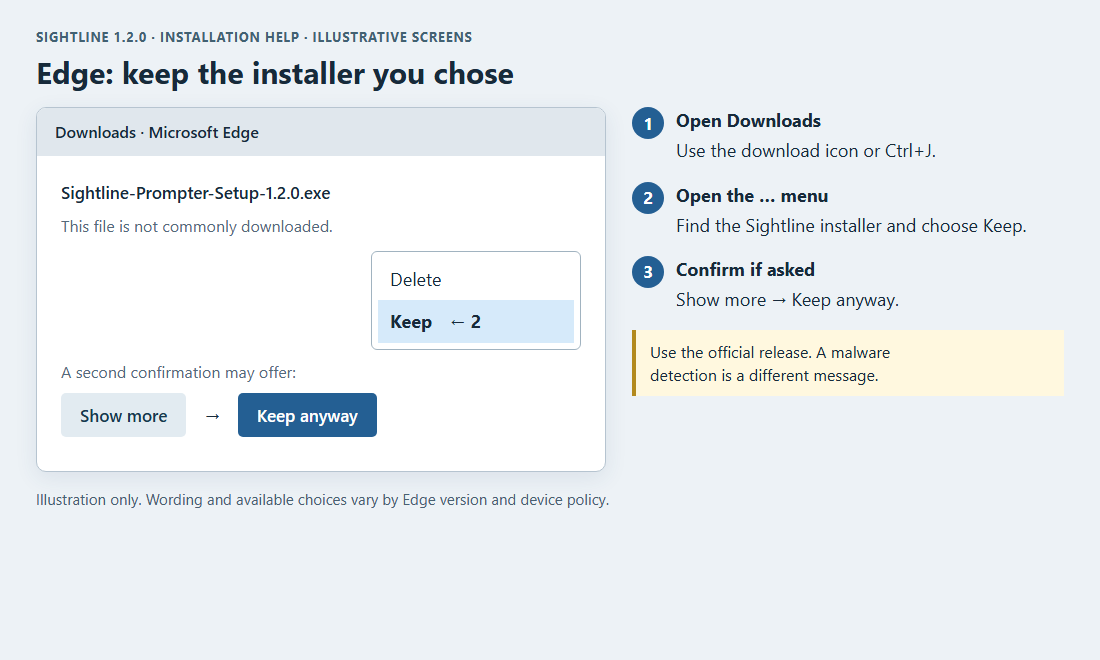
This flow follows Microsoft’s Edge download guidance. Other browsers can also show a keep/confirmation step. Use their Downloads list and read the specific message; do not treat a malware detection as merely a download-reputation warning.
Windows: run the installer
If you see Windows protected your PC:
- Choose More info.
- Check that the app is the Sightline installer you downloaded. Because this build is unsigned, Windows may show Unknown publisher.
- Choose Run anyway, then continue through the installer.
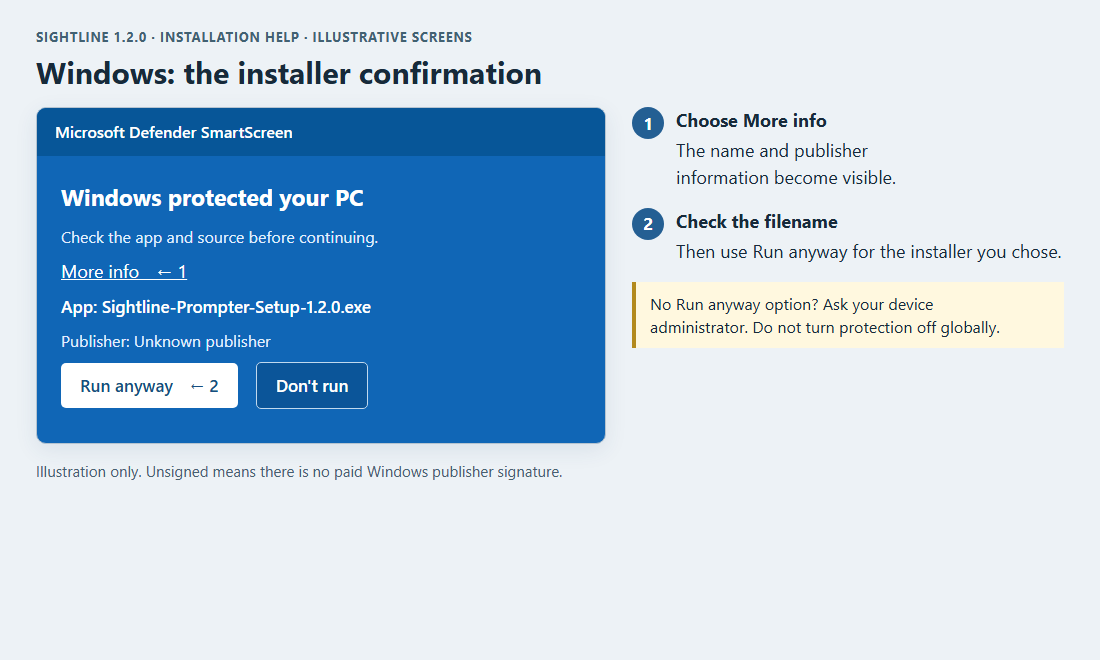
If Run anyway is absent, or you see Smart App Control blocked an app, your device policy may not allow this per-app choice. Ask the administrator rather than disabling SmartScreen, Smart App Control or antivirus globally. An antivirus quarantine is a separate issue: check its exact detection and the file’s source/hash before proceeding.
macOS: copy the app, then allow it
- Open the correct
.dmgand drag Sightline Prompter to Applications. - Open it from Applications. If macOS cannot verify the developer, close that message without moving the app to the Bin.
- Open System Settings > Privacy & Security and find the Security section.
- Beside the blocked Sightline app, choose Open Anyway. Authenticate when asked, then confirm opening the app.
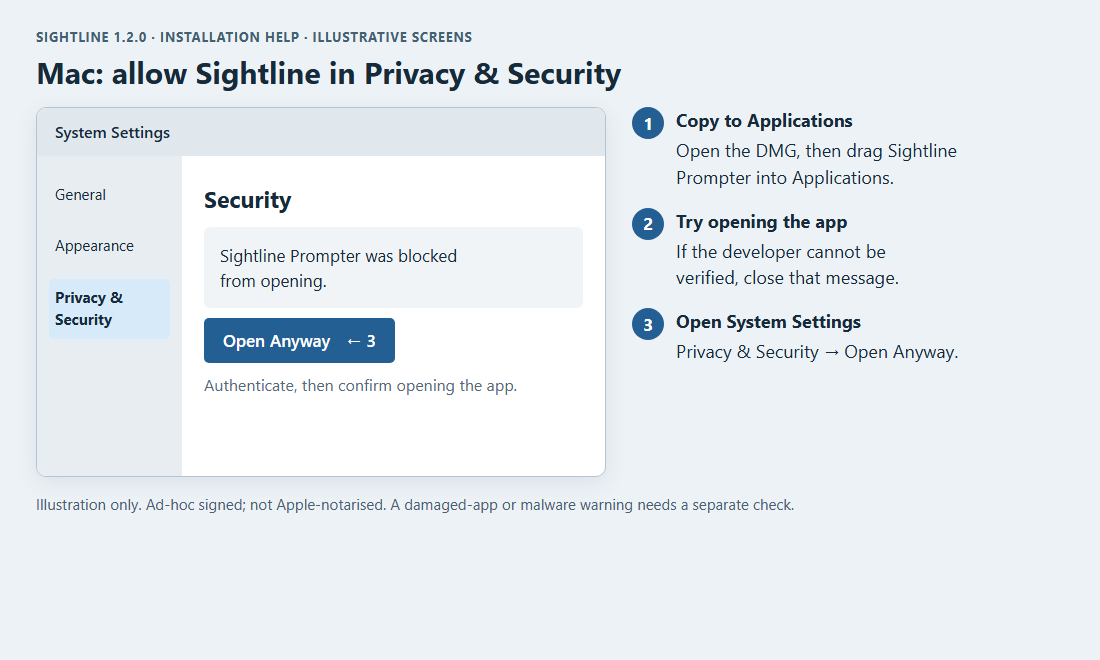
See Apple’s current instructions. Ad-hoc signing checks bundle integrity; it is not Apple notarisation or a paid Developer ID certificate. An “app is damaged” or malware message is not the same as an unverified-developer prompt. Re-download the matching installer, compare its checksum and report the exact message if it persists. If your organisation blocks the app or offers no exception, use its support process.
Check a downloaded file
The release includes SHA256SUMS.txt. Compare the hash of the installer with the matching filename in that file. A matching hash checks file integrity against the published release; it is not a security review of the app.
On Windows PowerShell:
Get-FileHash "$env:USERPROFILE\Downloads\Sightline-Prompter-Setup-1.2.0.exe" -Algorithm SHA256
On a Mac:
shasum -a 256 ~/Downloads/Sightline-Prompter-1.2.0-arm64.dmg
Use the Intel filename instead if that is your download. You do not need to send a password or API key to install Sightline. If asking for help, include the filename, app/OS/browser versions and the message, without private credentials.
Continue with Getting started · Support
This guide is also built into Sightline: Help → Download and installation help. Read the maintained reference.