Keep your place
Start and pause the words, move between sections or return to a marker. Stay with the script when you need a moment to reset.
Free plugin for Sightline Prompter
Your next line is waiting. Play, pause, find your place and mark a great take from the keys and dials you already know.
Plugin 0.2.0 for Windows and macOS. Requires the free Sightline app. Marketplace listing coming soon.
See how Play/Pause, sections, pace and script slots keep your read moving. Watch the captioned demo, then make the controls your own.
Start and pause the words, move between sections or return to a marker. Stay with the script when you need a moment to reset.
Drop a marker, choose a keeper or scrap a take. Give your edit a useful starting point while the moment is still fresh.
Adjust pace, text size and backing. On supported dials, turn the control instead of reaching for a slider.
Load an included profile, then put the actions where your hands expect them. Keys show prompting and On air state, with useful script information close by.
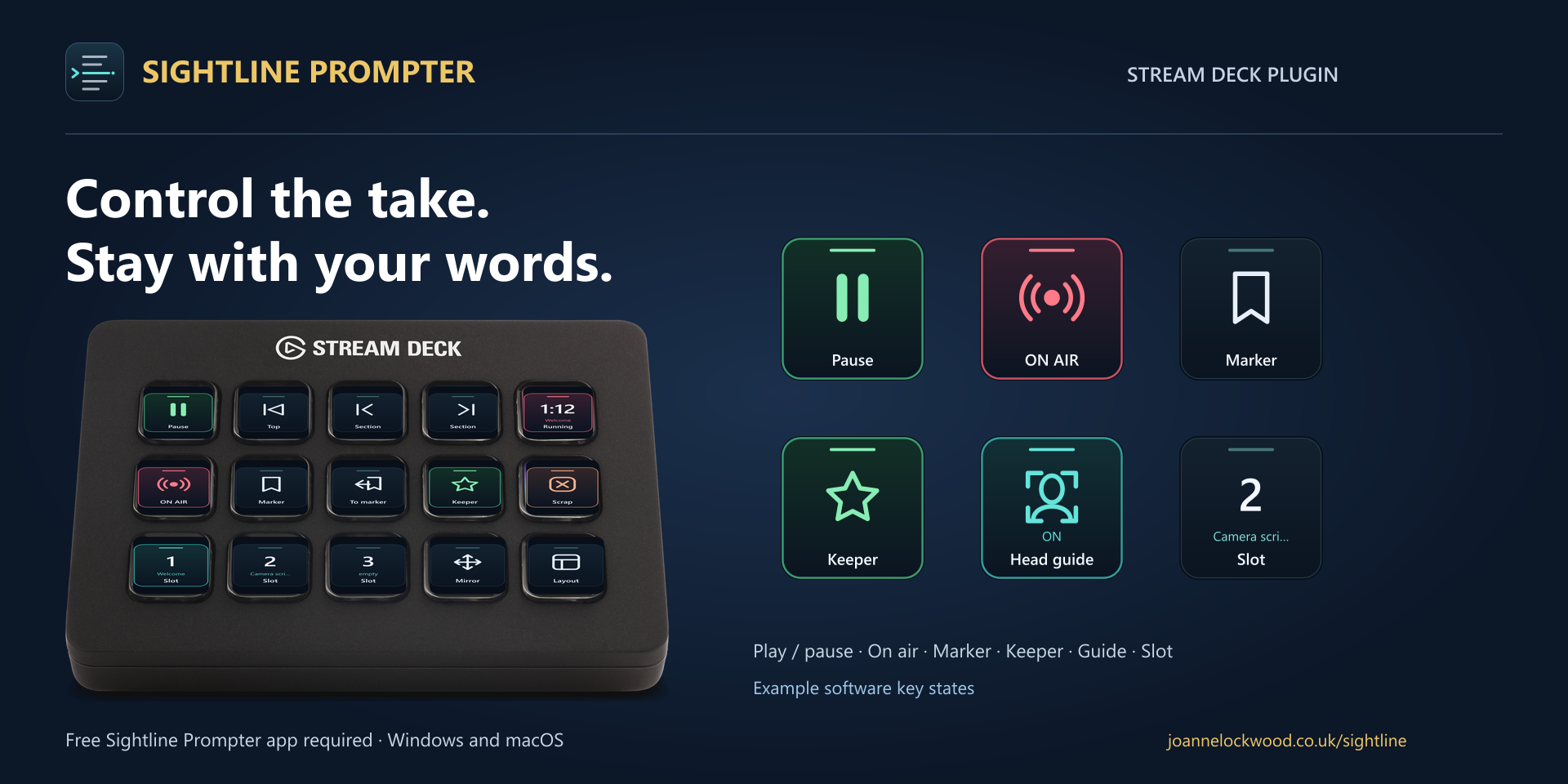
Profiles for Mini, Stream Deck, Neo, XL and Mobile bring prompting, sections and take markers together.
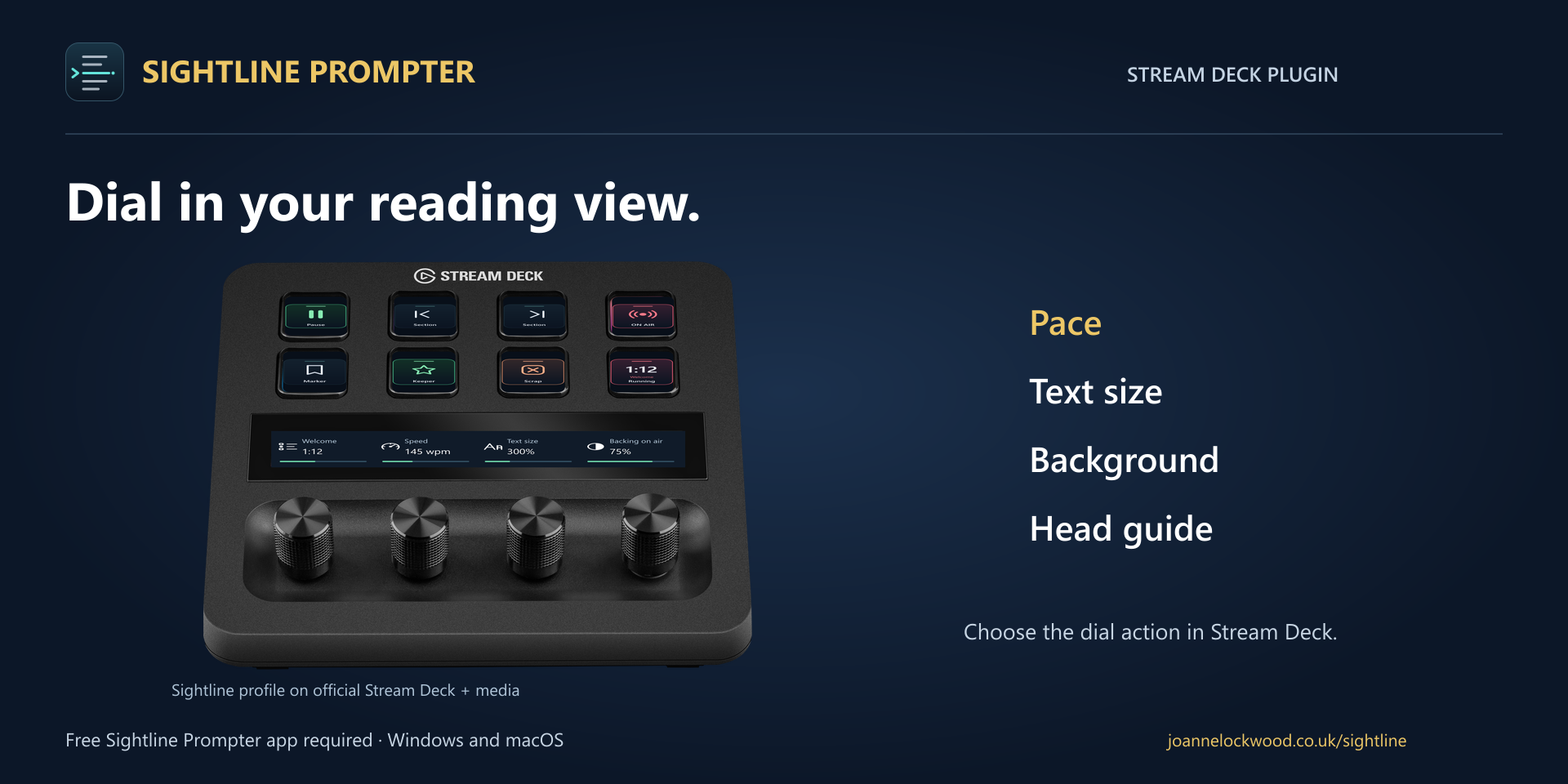
Stream Deck + and + XL add dial controls for sections, pace, text size and backing. Optional guide layouts put manual framing adjustments on the dials too.
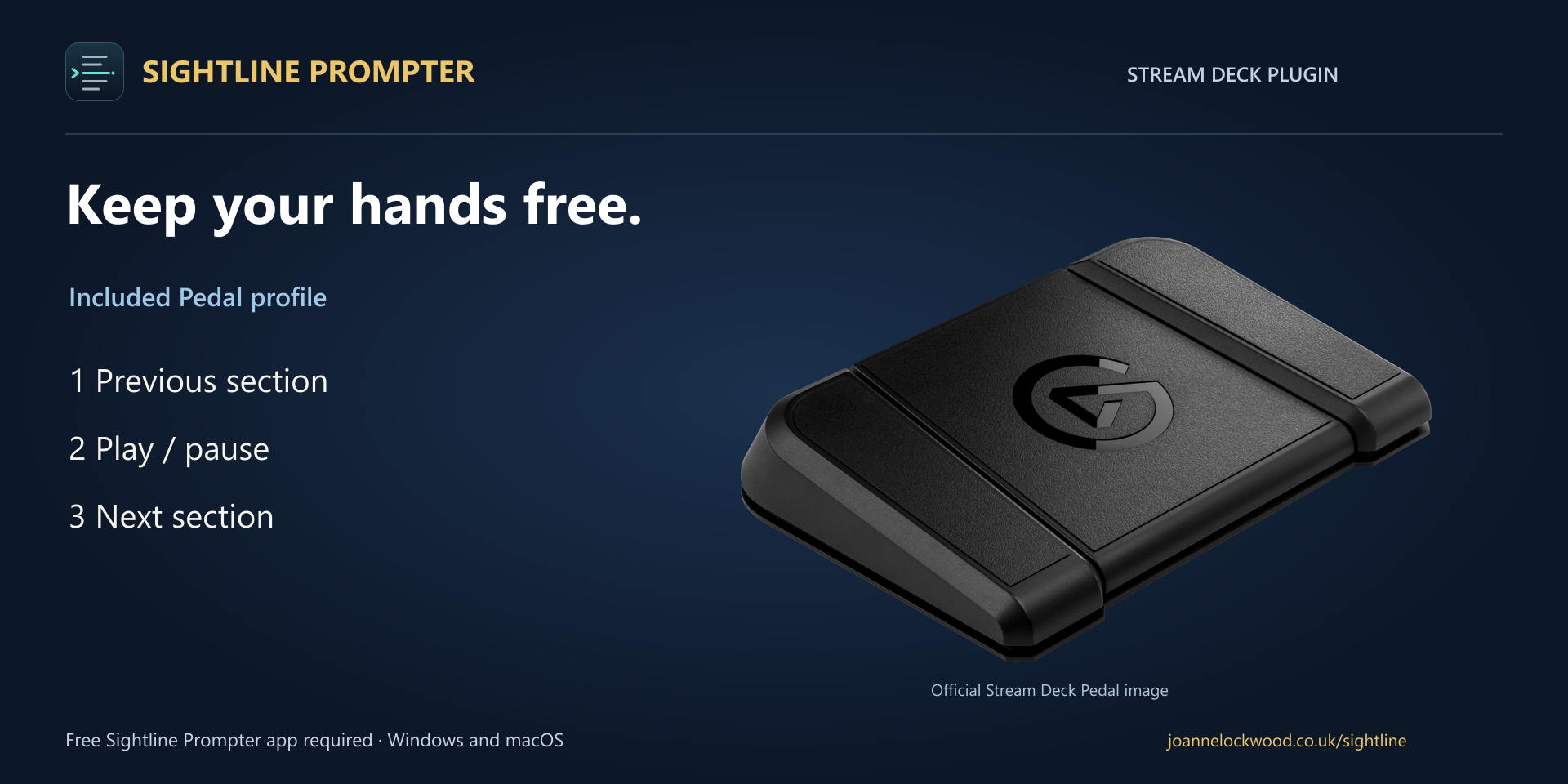
Use the Pedal for previous section, Play/Pause and next section while you hold notes, a product or your own presentation controls.
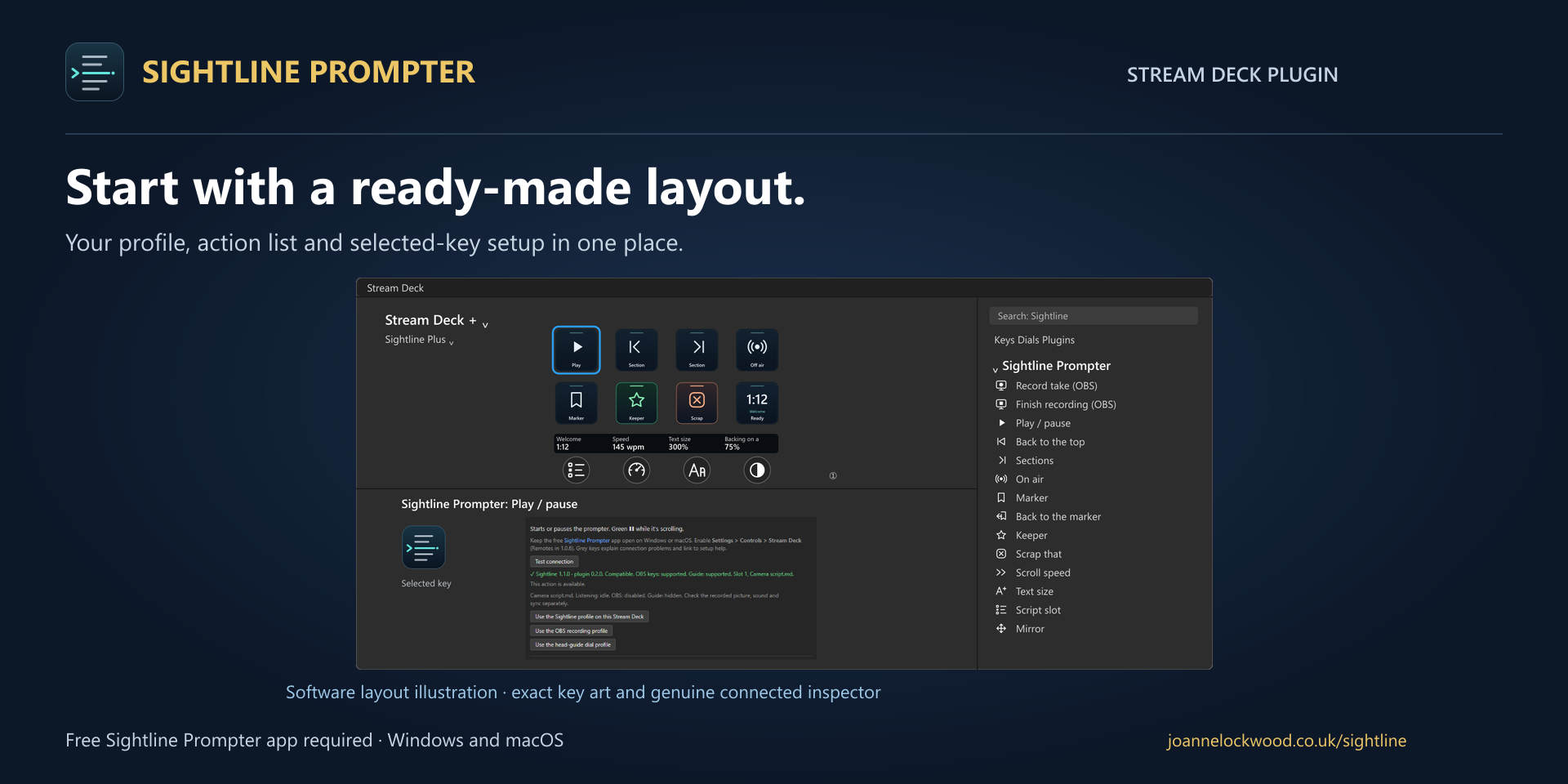
Start with Reading, OBS recording or Head guide, then customise the keys. Test connection checks the app, plugin versions and available controls.
Get the free Sightline app and install the plugin in Stream Deck. Sightline 1.1.0 is recommended for plugin 0.2.0.
Enable Stream Deck control in Sightline Settings. The plugin finds the local app, so there is no connection address to type.
Load a ready-made Reading, OBS recording or Head guide profile for your supported device. Use Test connection, then start with Play/Pause.
With OBS configured in Sightline, optional keys can start a take or finish your recording. Keep ordinary prompting controls beside them for pauses and retakes.
OBS controls become available after you enable the integration and recording permission in Sightline.
Already using Elgato’s MCP Deck? Compatible AI tools can trigger your configured Sightline virtual keys for Play/Pause, markers, pace and On air.
Explore Elgato’s MCP setupYes. The plugin controls the separate Sightline Prompter desktop app. Both are free. Use Sightline 1.1.0 with plugin 0.2.0 for the complete current control set.
Profiles are included for Stream Deck Mini, Stream Deck, Neo, XL, +, + XL, Pedal and Mobile. Choose a starting layout and change the assignments to suit your setup.
Optional OBS actions can start a take or finish a recording when OBS integration, connection and recording permission are enabled in Sightline. Ordinary Play/Pause remains the prompting control.
Compatible assistants can trigger the Sightline virtual keys you place on Elgato’s MCP Deck. This uses Elgato’s MCP server and Stream Deck setup. Play/Pause, Marker, pace and On air have been exercised through that route.
Download version 0.2.0 directly below. The Elgato Marketplace listing is coming soon. You will also need the Stream Deck desktop software on Windows or macOS.
Free plugin. Free Sightline app. A familiar set of controls for a more comfortable recording day.
Ask JoJo
Joanne's AI assistant
AI assistant — answers may be imperfect. Book a call for specifics.